

Home page layout
how-to Steps to accomplish one task
On this page
The Home page is made up of individual widgets - KPIs, charts, the Steward Inbox, and data quality summaries - arranged into a layout shape you choose, with each widget placed in one of that shape’s zones. An administrator can choose a default layout for users with a given role, and any user can further customize their own Home page: which widgets they see, which shape it uses, and where each widget sits. Hover over a widget to see a description of what it shows.
Available widgets
- KPIs - golden records, sources, AI agents, clean projects, and deduplication projects at a glance.
- Requires attention - change requests, role requests, and other items waiting on action.
- Live data pipeline - a live view of records moving through ingestion, rules and processing, enrichment, and matching and merging.
- Business domains - golden record counts by business domain.
- Top tags - golden record counts by tag.
- Statistics - billable records, users, business domains, and vocabulary usage.
- Useful links - quick access to documentation and onboarding resources.
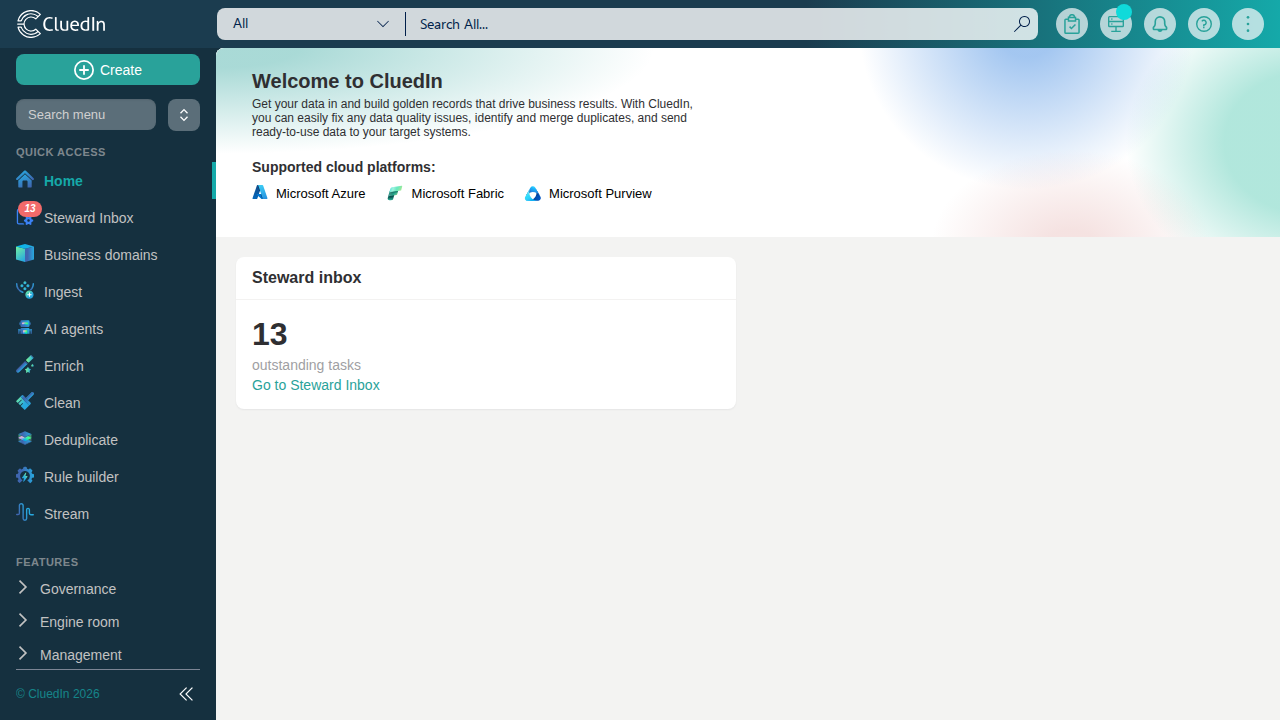
- Steward inbox - the number of outstanding steward tasks, with a link to the full Steward Inbox.
- Data quality overview - the overall percentage of bad data across your organization’s quality metrics.
- Data quality by source - the percentage of bad data broken down by data source, worst first.
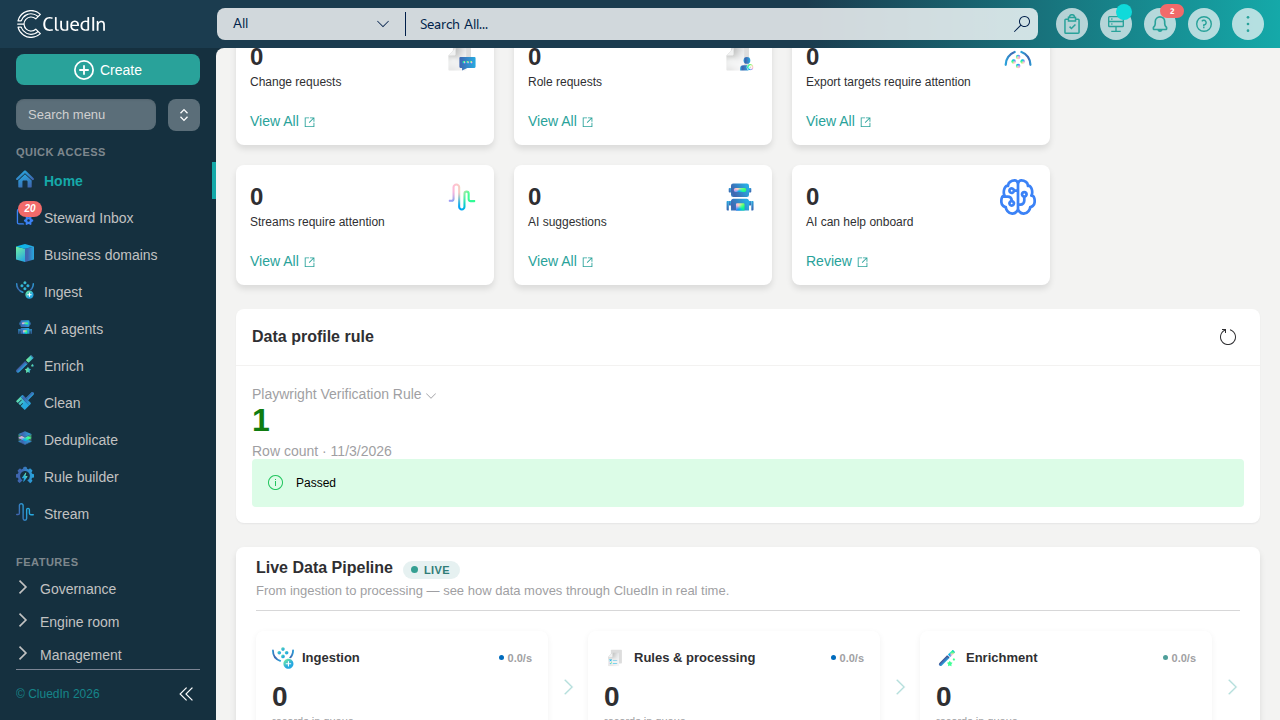
- Data profile rule - the last result of a Data Profile Rule you choose: its computed value, whether it passed, and when it last ran, with a button to run it again.
A user who has not chosen their own layout, and whose role has no default layout configured, sees the original seven widgets (KPIs, Requires attention, Live data pipeline, Business domains, Top tags, Statistics, and Useful links) in a single column - the Home page’s unchanged default.
Layout shapes
A layout has a shape (how many zones, and how they’re arranged) and, for each zone, the widgets placed in it:
- Single column - one zone.
- Two columns - two equal-width zones, side by side.
- Two columns, wide left - two zones side by side, the left about twice the width of the right.
- Two columns, split right - a left zone the full height, next to two zones stacked on top of each other on the right.
- Three columns - three equal-width zones, side by side.
A widget can only be placed in one zone at a time. A widget not placed in any zone is not shown.
Customize your own Home page
Open your account menu and select User Settings, then under Home page widgets select Customize home page. Select one of the layout shapes, then drag widgets from the Not shown tray into the zone you want them in - or drag a widget back into Not shown to hide it, or between zones to move it. Select Save when done. Your layout is saved to your account and loads the same way the next time you sign in, on any device.
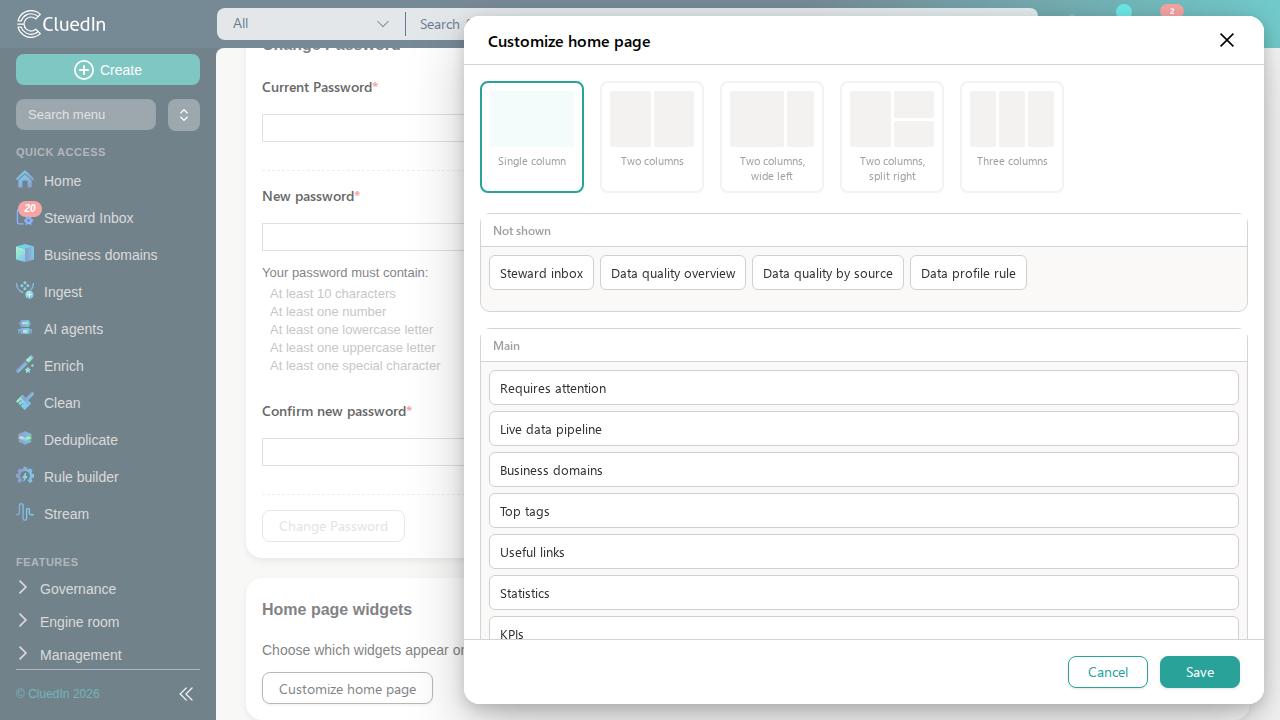
Switching shape keeps a widget in its zone when both shapes have a zone with that name; otherwise the widget moves into the new shape’s first zone, so switching shape never removes a widget from your layout.
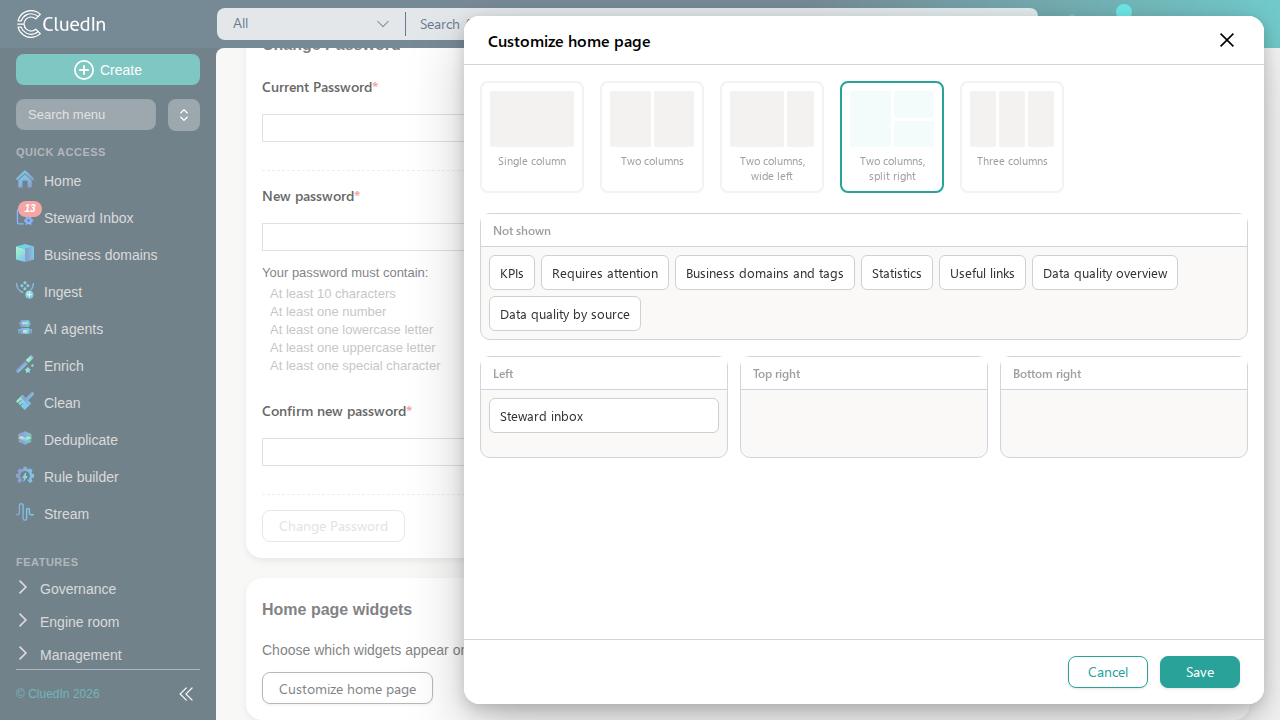
Once saved, your Home page renders the shape you chose, with each widget in the zone you placed it in.
The Data profile rule widget
The first time this widget shows on your Home page, it asks which Data Profile Rule to track. Once you pick one, it shows that rule’s last result - its computed value, a pass or fail indicator, the metric type, and when it last ran - and a refresh button in its top-right corner to run the rule again on demand. Select the rule’s name to pick a different one. This choice is remembered on this device only; it doesn’t travel with your saved layout to another device.
Configure a default layout per role
An administrator can choose a default layout for users with a particular role, from Administration > Organization settings > Home Page Layouts.
- Select the role.
- Select a layout shape and drag widgets into its zones, the same way as customizing your own Home page.
- Select Save.
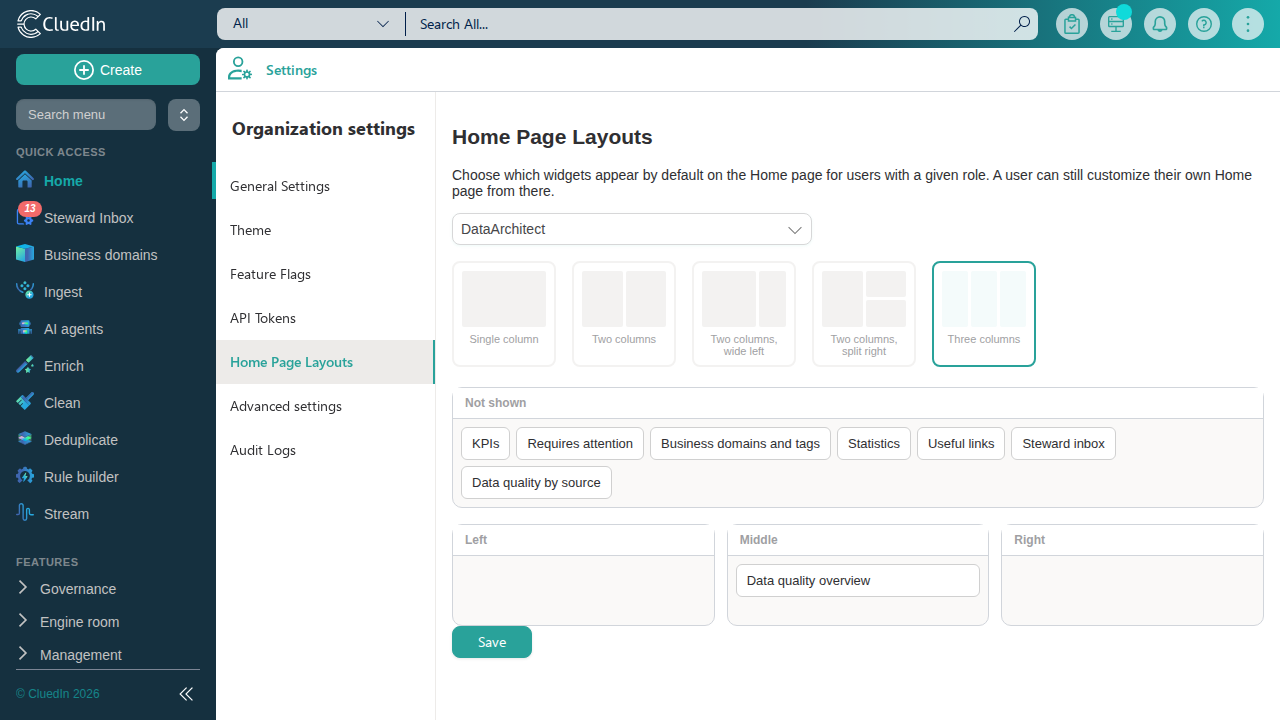
A user who has not customized their own Home page sees their role’s configured default. If a user belongs to more than one role with a configured default, they see the default of whichever of those roles is found first - this is not currently configurable. A user can still customize their own Home page at any time, which takes priority over any role default. Leaving every zone empty for a role clears its default layout; users with that role then see the original seven widgets.